Python is one of the simplest and easiest programming languages to learn, which makes it a beginner-friendly language. After installing Python on your computer, the next step is writing your first Python program. We prefer to start with the “Hello, World!” program because it is simple and helps in understanding how Python code works. Writing your first program helps you to understand how to write code, run it, and see the output on the screen. In this article, we will learn how to write and run the first Python program step-by-step.
Table of Contents
Writing First Python Program
Below are the two different ways to write a code in IDLE:Method 1: Using the Interactive Shell (For Quick Tests)
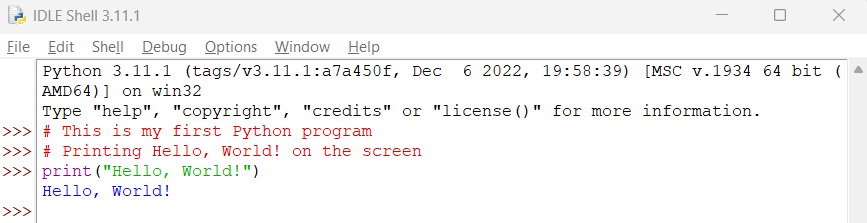
When you first launch IDLE, it opens up the Python Shell by default.
- Look for the prompt in the window.
- Type a line of code directly next to the prompt.

Method 2: Using the Editor Window (For Saving & Running Scripts)
To write multi-line programs that you can save and edit later, use the built-in text editor.
1. Open a New File: With IDLE open, click on the File menu at the top left and select New File
2. Write Your Code: A blank window will pop up. Type your multi-line Python program here.
# This is my first Python program
# Printing Hello, World! on the screen
print("Hello, World!")
3. Save Your Code: Click File Save. Give your file a name ending in the .py extension (e.g., hello.py).
Understanding Code
- # This is my first Python program: This is a comment and is used to explain the code and is ignored by the interpreter during execution.
- # Printing Hello, World! On the screen: This is also a comment that tells us what the next line of code will do.
- print("Hello, World!"): print() is a built-in Python function that is used to display output on the screen.
- "Hello, World!": This is a string, and a string is text written inside quotation marks.
Running Code
Below are the two different ways to write code in IDLE:Method 1: Using the Interactive Shell
When using the IDLE in interactive shell, press Enter to execute the code and view the output instantly.
Method 2: Using the Editor Window
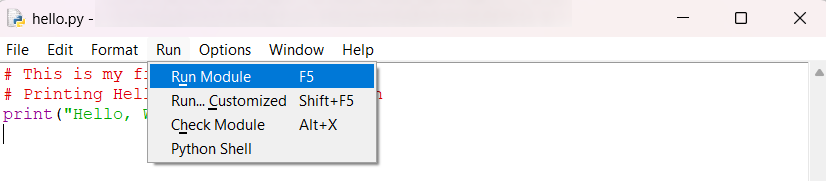
1. Execute your code by clicking the Run menu at the top and selecting Run Module, or simply press F5 on your keyboard.
2. The execution results will instantly print out inside the original Python Shell window.
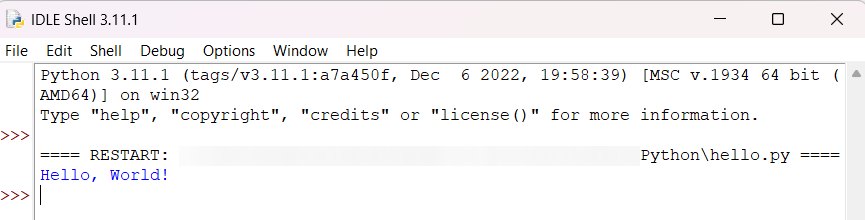
Output of Program
Hello, World!
Common Beginner Mistakes
2. Not Saving File With .py Extension: Always save Python files with the .py extension.Incorrect:
print(Hello World!)
Correct:
print("Hello, World!")
3. Not Marking Single-Line Comments With #: If you don't add # before the line you want to comment out, the interpreter will show an error in the code. It is important to add # before the lines you want to be commented.Wrong:
hello
Correct:
hello.py
4. Incorrect Spelling of print: Python is case-sensitive, and its function names should be written correctlyWrong:
This is my first Python program
Correct:
# This is my first Python program
5. Forget to close the Parenthesis: If you forgot to close the parenthesis, the interpreter will show an error; it is important to close them.Wrong:
Print("Hello, World!")
Correct:
print("Hello, World!")
Wrong:
print("Hello, World!"
Correct:
print("Hello, World!")
Conclusion
Although it is a simple program, it builds confidence and introduces the basic workings of Python. Once you understand this program, you can move forward to learn other Python concepts.
Frequently Asked Questions
1. What is the first Python program?
2. Why is “Hello, World!” used as the first program?The first Python program is usually print("Hello, World!").
3. What does print() do in Python?It is simple, easy to understand, and helps beginners learn basic syntax and output.
4. Can I write my first Python program in VS Code?print() is used to display output on the screen.
5. What will be the output of print("Hello, World!")?Yes, you can write and run Python programs in VS Code, Python IDLE, or any code editor that supports Python.
The output will be:
Hello, World!

0 Comments