Table of Contents
Understanding the C Development Environment
Before starting to write C programs, let's understand the tools required:- Compiler: You write your code in C, which humans can read, but computer only understands machine language. The compiler takes the C code and translates it to instructions that the computer can understand and execute.
- IDE (Integrated Development Environment): IDE lets you write code, highlight mistakes, run the program, and sometimes even suggest fixes. Using an IDE is not essential; you can write a program in a simple text editor and use the compiler separately, but an IDE makes life much easier.
Setting Up on Windows
If you are using Windows for writing a C program, two things are needed before you can start coding in C:- Installing a Compiler (MinGW or TDM-GCC): To use the compiler, you need to download and install it. Then add the bin folder of the installed compiler to PATH to use it from the Command Prompt.
- Installing an IDE (Optional but Recommended): You don’t have to use an IDE, but it makes coding easier for beginners. Some of the popular choices for the IDE are Code::Blocks, Visual Studio Code, and Dev-C++. To use an IDE, you need to download and install it. Make sure it is linked to the MinGW compiler you installed earlier.
Installing and Configuring Compiler TDM-GCC
Here is the step-by-step guide to installing the compiler:1. Checking if the Compiler is Already Installed
Open Command Prompt and type:If you see a version number, GCC (GNU Compiler Collection) is already installed. If there is an error, then GCC needs to be installed.gcc --version
2. Installing a Compiler
- Go to the official site: https://jmeubank.github.io/tdm-gcc/
- Click on Download TDM-GCC to get the installer (.exe file).
- Double-click the installer file you just downloaded.
- Choose Create when asked about installation type (this is for a fresh installation).
- Pick the TDM-GCC recommended version (usually the latest stable).
- Click Next to continue.
- By default, it installs to C:\TDM-GCC. You can keep this or choose another folder.
- Click Next and wait for the files to be installed.
3. Adding Compiler to PATH (Windows Only)
- Right-click This PC → Properties → Advanced system settings.
- Click Environment Variables.
- Find the Path variable, select it, and click Edit.
- Add the path to your TDM-GCC bin folder (for example: C:\TDM-GCC\bin).
- Click OK to save.
4. Testing Compiler
-
Open the Command Prompt.
- Type: gcc --version
- If you see the GCC version number, TDM-GCC is installed successfully!

Installing and Configuring Visual Studio Code (VS Code)
Here are the steps to follow to install and configure VS Code:1. Download VS Code from https://code.visualstudio.com/
2. Once downloaded, install VS Code like a normal program.
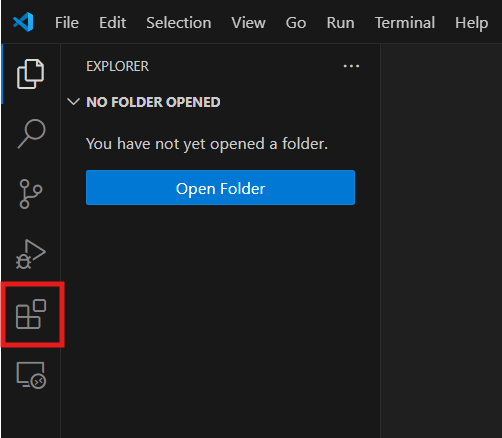
3. Open VS Code, then click on Extensions Marketplace from the left side menu.
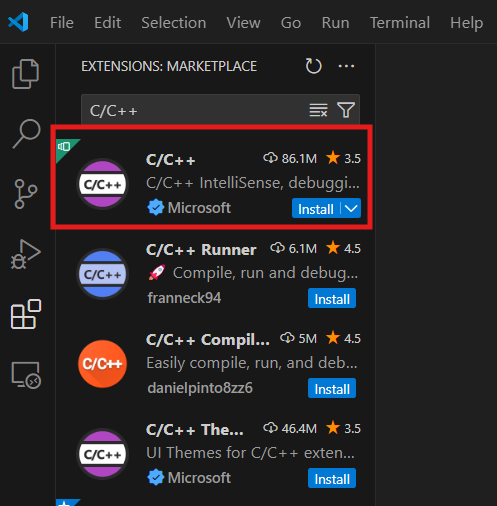
4. Search C/C++ and install the C/C++ extension from Microsoft.
5. Make sure you have already installed a compiler, TDM-GCC, and added it to your PATH.
Running Your First C Program
Here are the steps to write and compile a C program:Writing a C Program
1. Open VS Code.2. Create a New File from the File Menu.
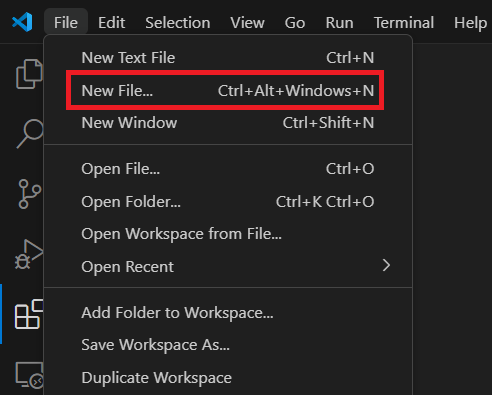
3. Type in the New File name Hello.c and save it in the desired folder. Make sure the extension is .c (not .txt by accident).

4. Type the following code:
// C program to print Hello World
#include stdio.h

// Main function
int main()
{
  printf("Hello, World!\n");
  return 0;
}
Compiling and Running a C Program
There are two ways to compile a C program:1. Using IDE
1. Most IDEs have a Build or Run button. Click it, select the compiler, and it will compile and run the program for you.

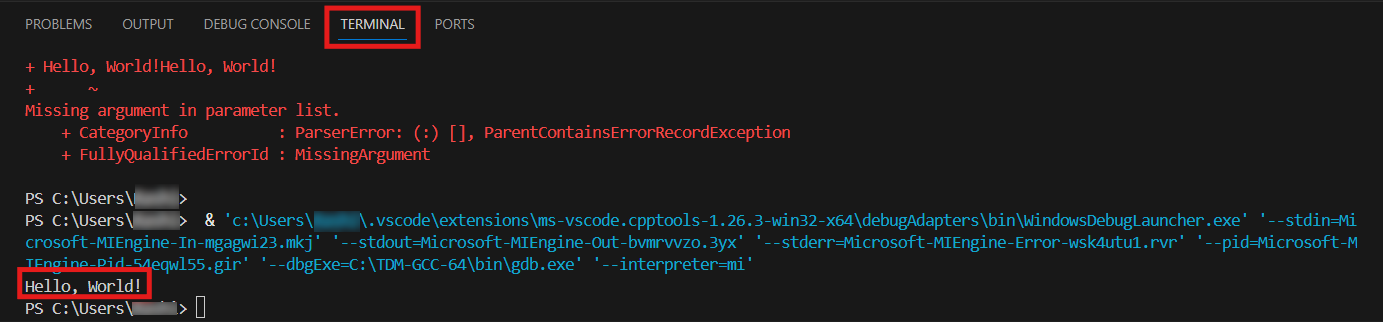
2. The output will be displayed on the terminal.
2. Using the Command Line:
1. Open the Command Prompt.2. Navigate to the folder where you have saved hello.c
3. Type: gcc hello.c -o hello. This tells the compiler to take the hello.c file and create an output file hello.

4. To run the program type: hello
5. The output will be displayed on the terminal.
 Congratulations! You have just written, compiled, and executed your first C program.
Tips for Beginners
Here are some tips for beginners to get started with C programming:- Keep Setup Simple: One compiler and IDE are enough to get started with C. Don’t start with too many tools at the beginning.
- Save Often and Organize Files: Create a folder just for the program files and name your files clearly.
- Practice Regularly: The more you practice, the better you get at it. Try writing little code every day.
- Use Online Communities: Use online forums and communities if you get stuck somewhere, and feel free to post your doubt, stating the facts clearly with proper screenshots.
- Read Error Messages: Error messages displayed in the compiler usually tell what went wrong and on which line. Try understanding the error.
Conclusion
In conclusion, Getting C setup ready is the first step, now you’re set to start coding. Keep things simple, practice regularly, and don’t be afraid to experiment.Frequently Asked Questions
1. What is a compiler in C?2. Do I need an IDE to write C programs?A compiler converts C code into machine code that the computer can execute.
3. Which compiler is commonly used for C on Windows?No, an IDE is optional, but it makes coding easier with features like syntax highlighting and debugging.
4. How can I check if GCC is installed?GCC (via MinGW or TDM-GCC) is one of the most commonly used compilers.
5. Can I run C programs without installing software?Open Command Prompt and type gcc --version to verify installation.
Yes, you can use online compilers, but installing locally gives better control and performance.

0 Comments