Two of the most commonly used tools for Python development are Visual Studio Code (VS Code) and PyCharm. Both are popular among beginners as well as professional developers.
VS Code is lightweight, fast, and supports many programming languages through extensions. PyCharm is designed specifically for Python and provides many built-in features that make coding easier.
This article explains how to set up both VS Code and PyCharm for Python programming.
Table of Contents
How to Set Up Python in VS Code?
Step 1: Download VS CodeDownload (Visual Studio)VS Code from the Windows Store.
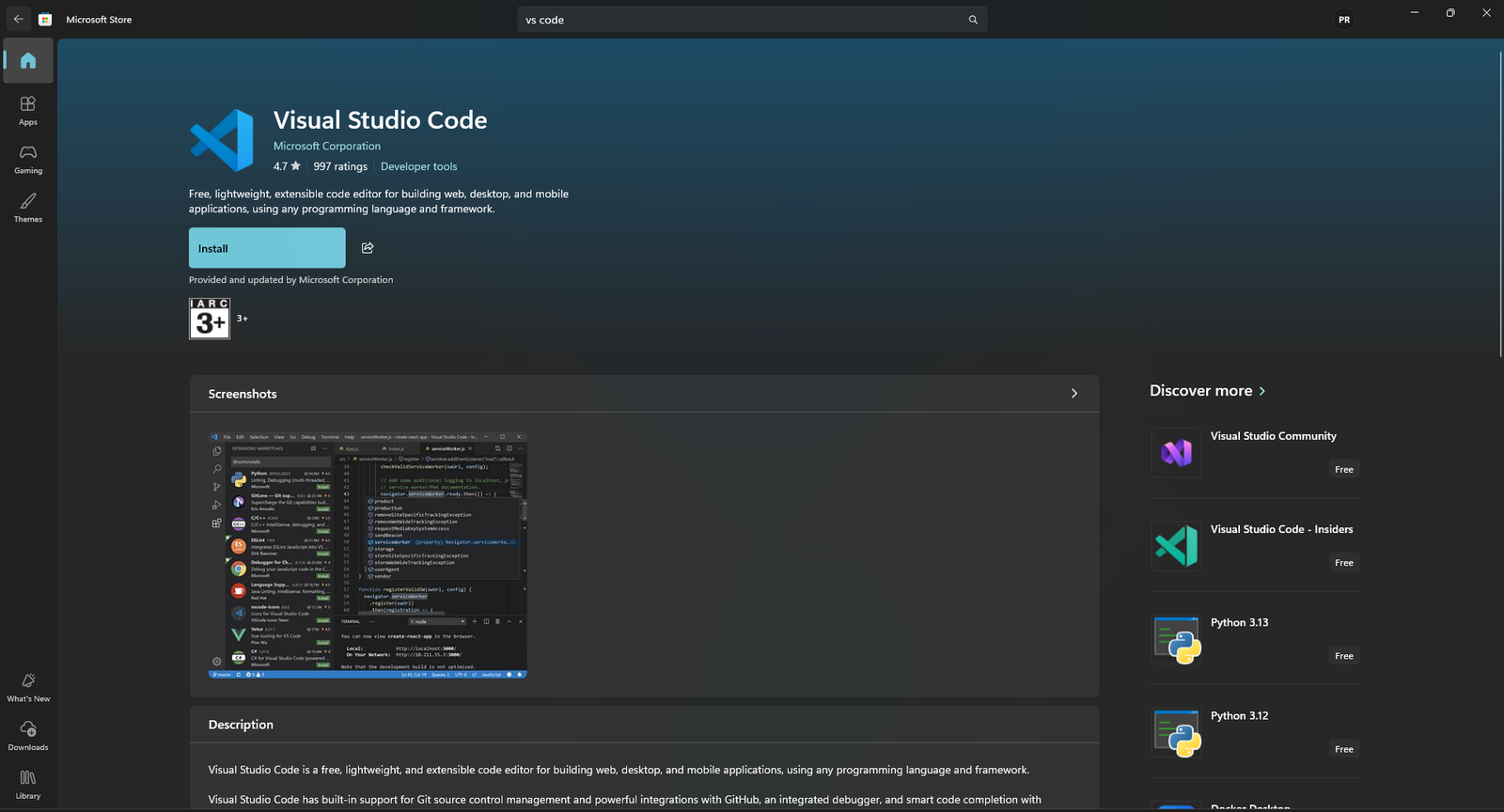
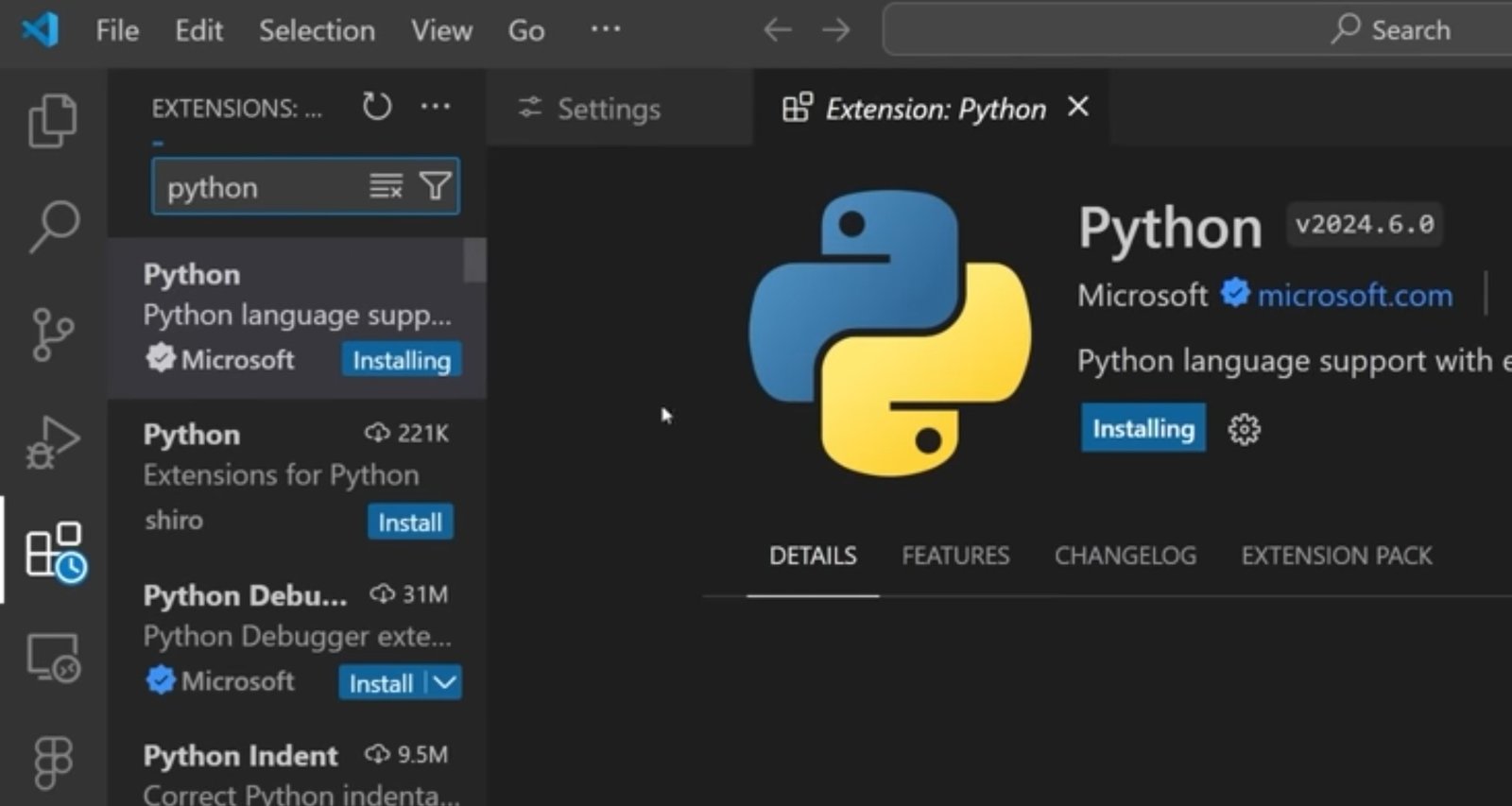
Step 2: Install Python Extension
- Open VS Code.
- Click on the Extensions icon from the sidebar.
- Search for Python.
- Install the Python extension developed by Microsoft.
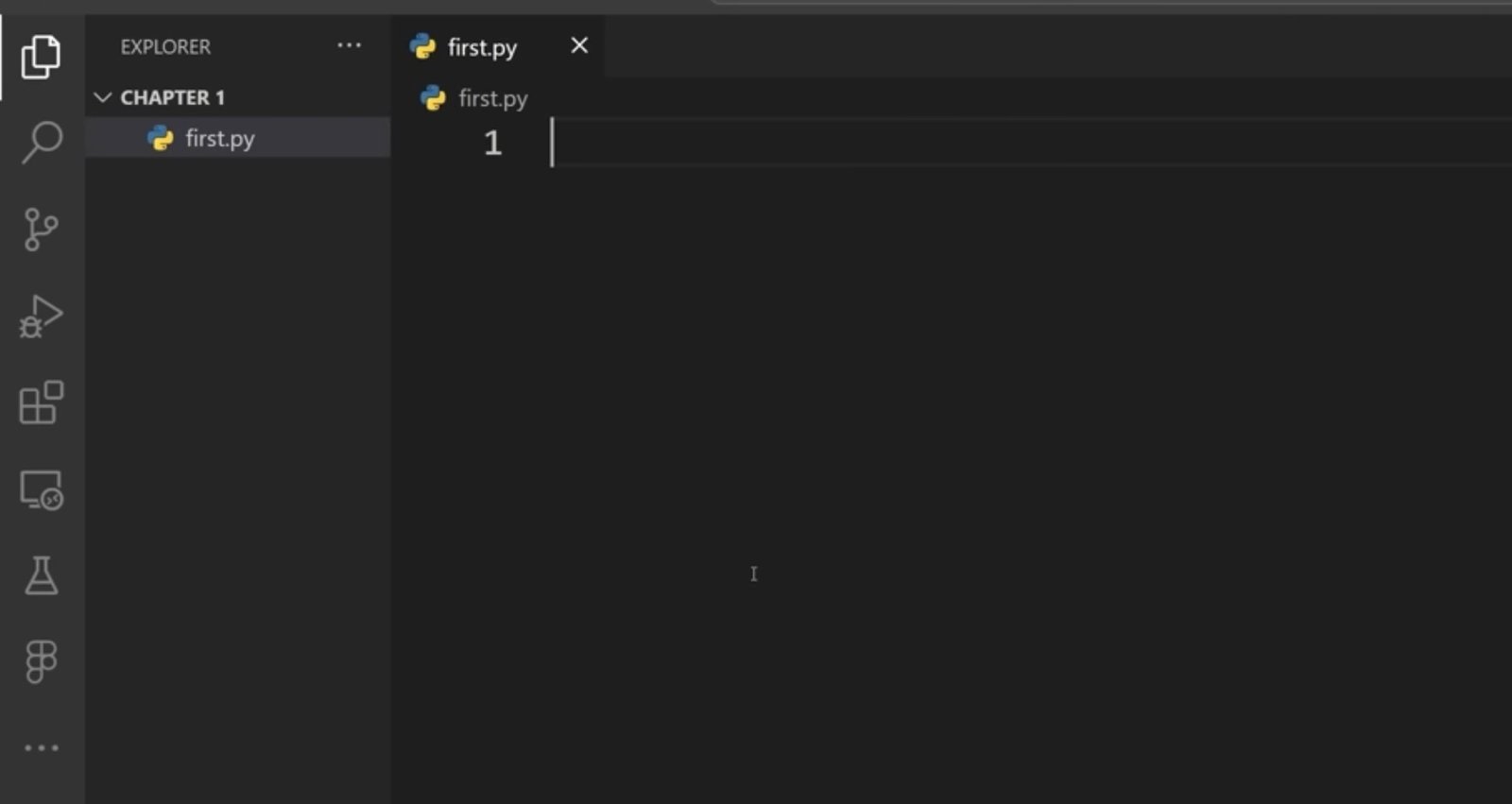
Step 3: Create a Python File
- Click on File → New File.
- Save the file with .py extension.
Example:
first.py
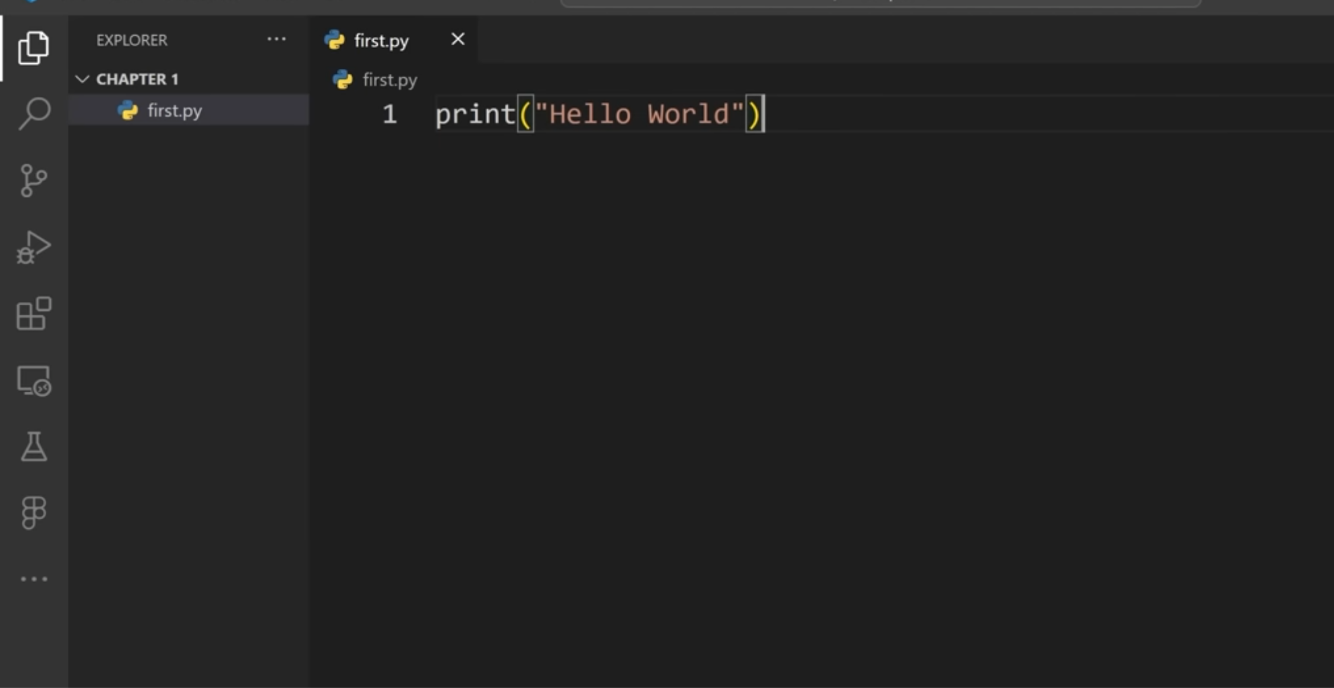
Step 4: Write your first Python Code
Write this code in the file:
print("Hello World")
Step 5:Run your Python Code
Open Terminal in VS Code and type
python first.py
And press enter.
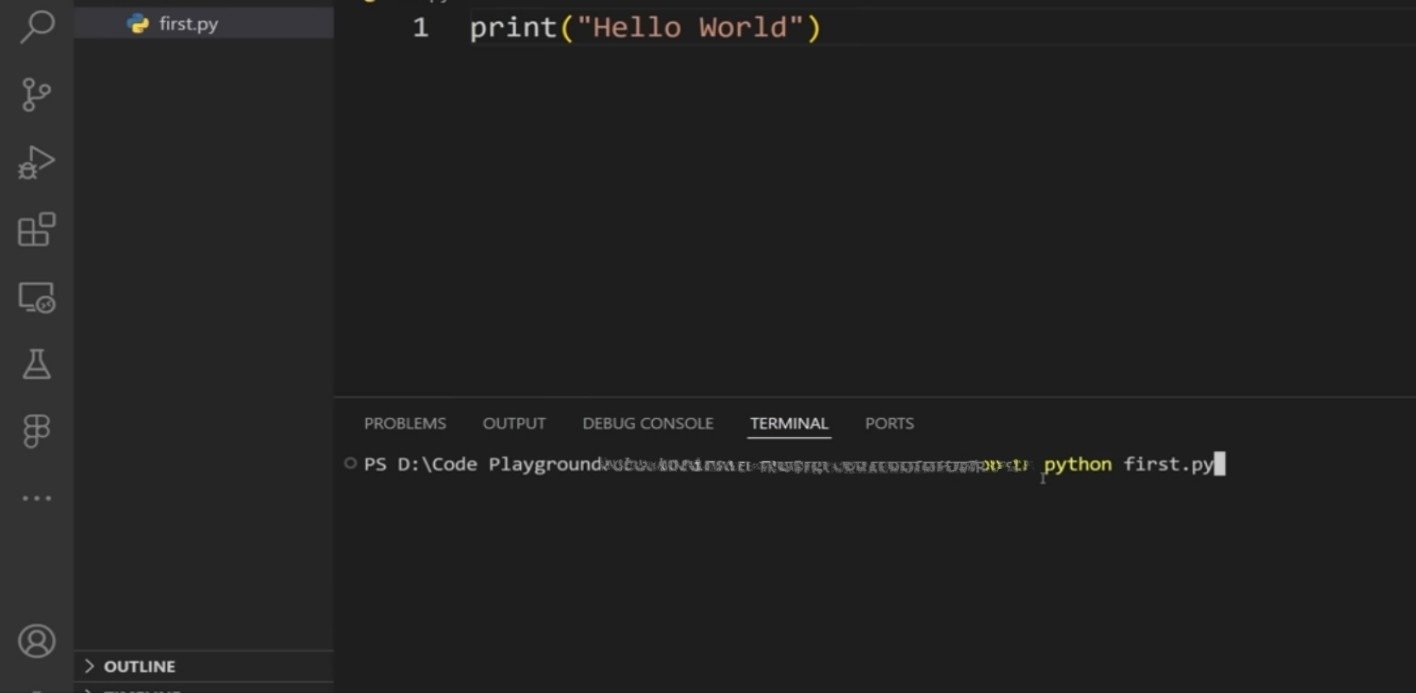
The result "Hello World" is displayed on the screen.
Setting Up PyCharm
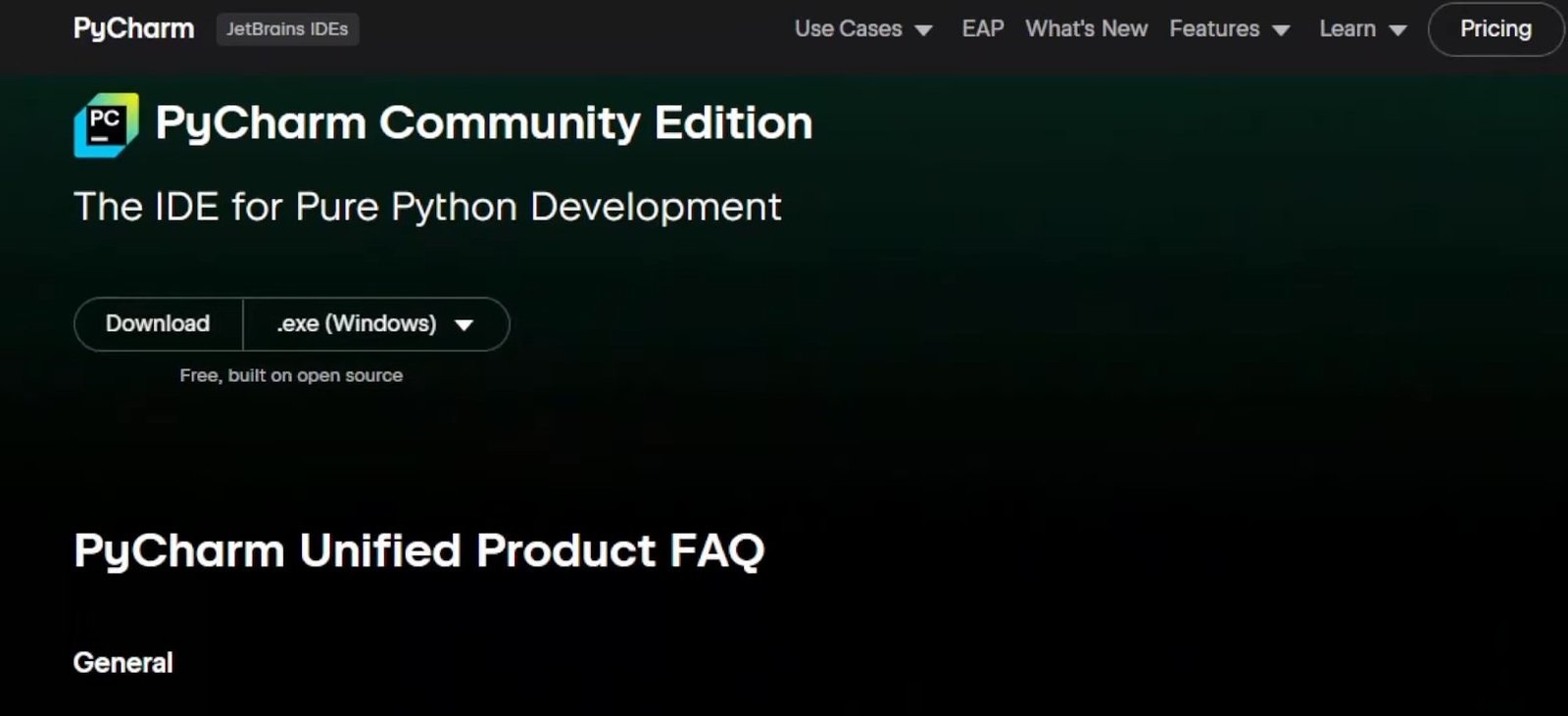
Step 1: Download PyCharm
- Go to the website JETBRAINS.
- Scroll down and you will see PyCharm Community Edition.
- Tap on Download (Free).
Step 2: Install PyCharm
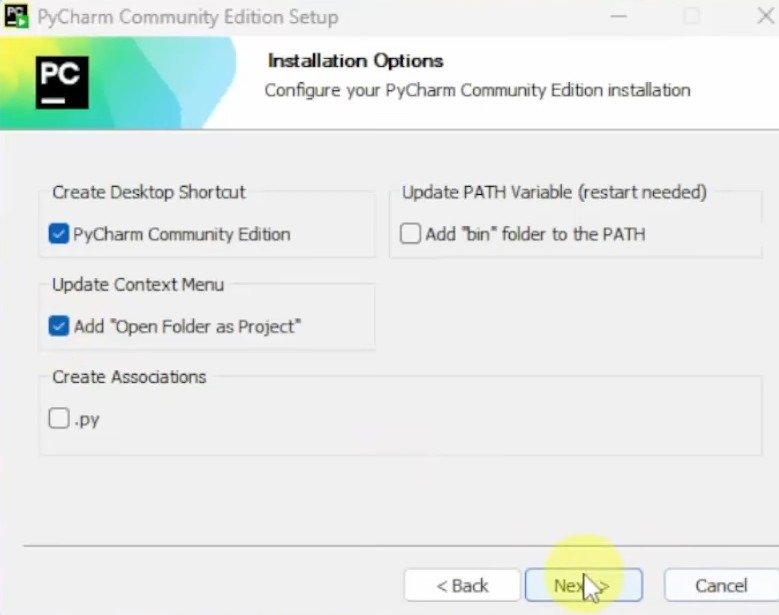
- Run the installer and finish the setup.
- Check the two boxes and proceed to the next, and the installation will start.
Step 3: Create New Project
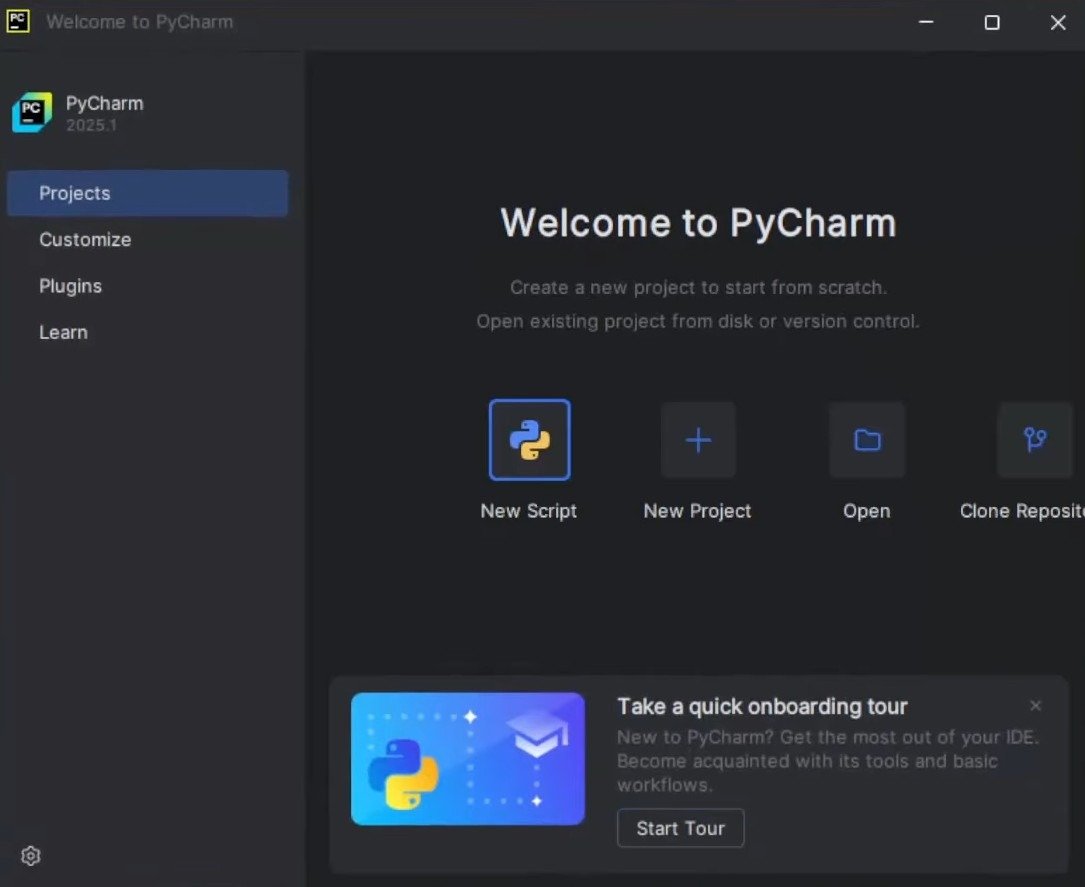
- Open PyCharm.
- Create New Project.
- Select project location.
- Tap on Create.
Step 4: Create a Python File
- Right-click on the project folder.
- Select New → Python File.
- Name it:
first.py
Step 5: Write and Run Program
Write this code:
Write this code:
print("Hello World")
Right-click the file and choose Run. The output is diplayed on the screen.
Hello World
VS Code vs PyCharm
| Basis of Comparison | VS Code | PyCharm |
|---|---|---|
| Purpose | VS Code is a lightweight source code editor that supports multiple programming languages through extensions. | PyCharm is a dedicated Integrated Development Environment (IDE) designed specifically for Python development. |
| Installation Size | VS Code requires less storage space and installs quickly on most systems. | PyCharm requires more disk space because it includes many built-in Python development tools. |
| Performance | VS Code generally starts faster and consumes fewer system resources. | PyCharm may use more RAM and CPU, especially when working on large projects. |
| Python Support | Python support is added through the official Python extension and related plugins. | Python support is available by default without requiring additional extensions. |
| Ease of Use | VS Code is simple and beginner-friendly, making it a good choice for learning programming. | PyCharm offers many advanced features, which may feel overwhelming for absolute beginners. |
| Debugging Tools | VS Code provides debugging capabilities through extensions and configuration settings. | PyCharm includes powerful built-in debugging tools that are ready to use immediately after installation. |
| Code Completion | VS Code offers intelligent code suggestions through extensions and language servers. | PyCharm provides advanced code completion and code analysis specifically optimized for Python. |
| Project Management | VS Code is suitable for small to medium-sized projects and supports project organization through extensions. | PyCharm includes advanced project management features that are useful for large and complex applications. |
| Customization | VS Code is highly customizable with thousands of extensions, themes, and settings. | PyCharm can be customized, but it focuses more on providing a complete Python development environment out of the box. |
| Best For | VS Code is ideal for beginners, students, and developers who work with multiple programming languages. | PyCharm is ideal for dedicated Python developers who need advanced development and debugging features. |
Conclusion
Setting up either VS Code or PyCharm for Python development is a straightforward process. VS Code is a lightweight and flexible option that is well suited for beginners and developers who use multiple programming languages. PyCharm provides a complete Python-focused environment with advanced tools for coding, debugging, and project management. The choice between the two depends on your requirements, system resources, and development experience. Once the IDE is configured correctly, you can start writing, running, and debugging Python programs efficiently.Frequently Asked Questions
1. Which IDE is best for Python beginners?2. Can I use VS Code for Python?Both are good, but PyCharm is easier for pure Python beginners.
3. Is PyCharm free?Yes. With the Python extension installed, VS Code works very well for Python.
4. Is VS Code free?Yes, PyCharm Community Edition is free.
5. Do I need internet access to use VS Code or PyCharm?Yes, VS Code is free to use.
6. Why is Python not running in VS Code or PyCharm?No, after installation, u can run or write programs without the internet.
This usually happens when the python is not installed properly or the interpreter is not selected properly.

1 Comments